Reporting tab and academic integrity
Use Reporting to turn recorded progress into feedback for students and parents. The tab brings together course work, concept fluency, quiz results and agent performance, then helps draft a comment for you to review.
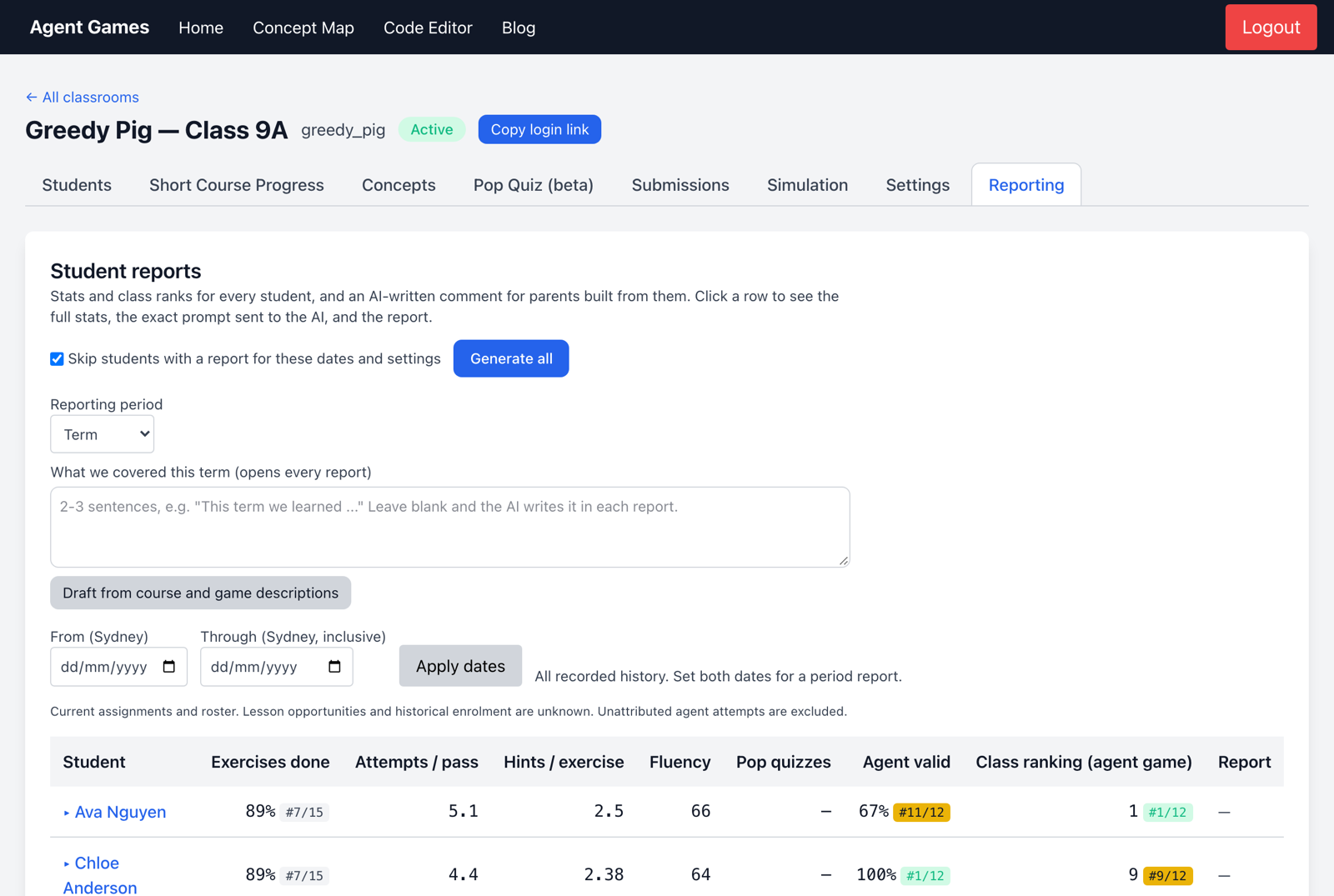
Build a report from relevant evidence
Choose the reporting period and dates to match the work you are reporting on. Empty dates include all recorded history.
Add what the class covered and any observations the platform cannot capture, such as a student's explanation in discussion. Open a student to review their evidence and choose whether to include next steps or class ranking. Generate one report or drafts for the class.
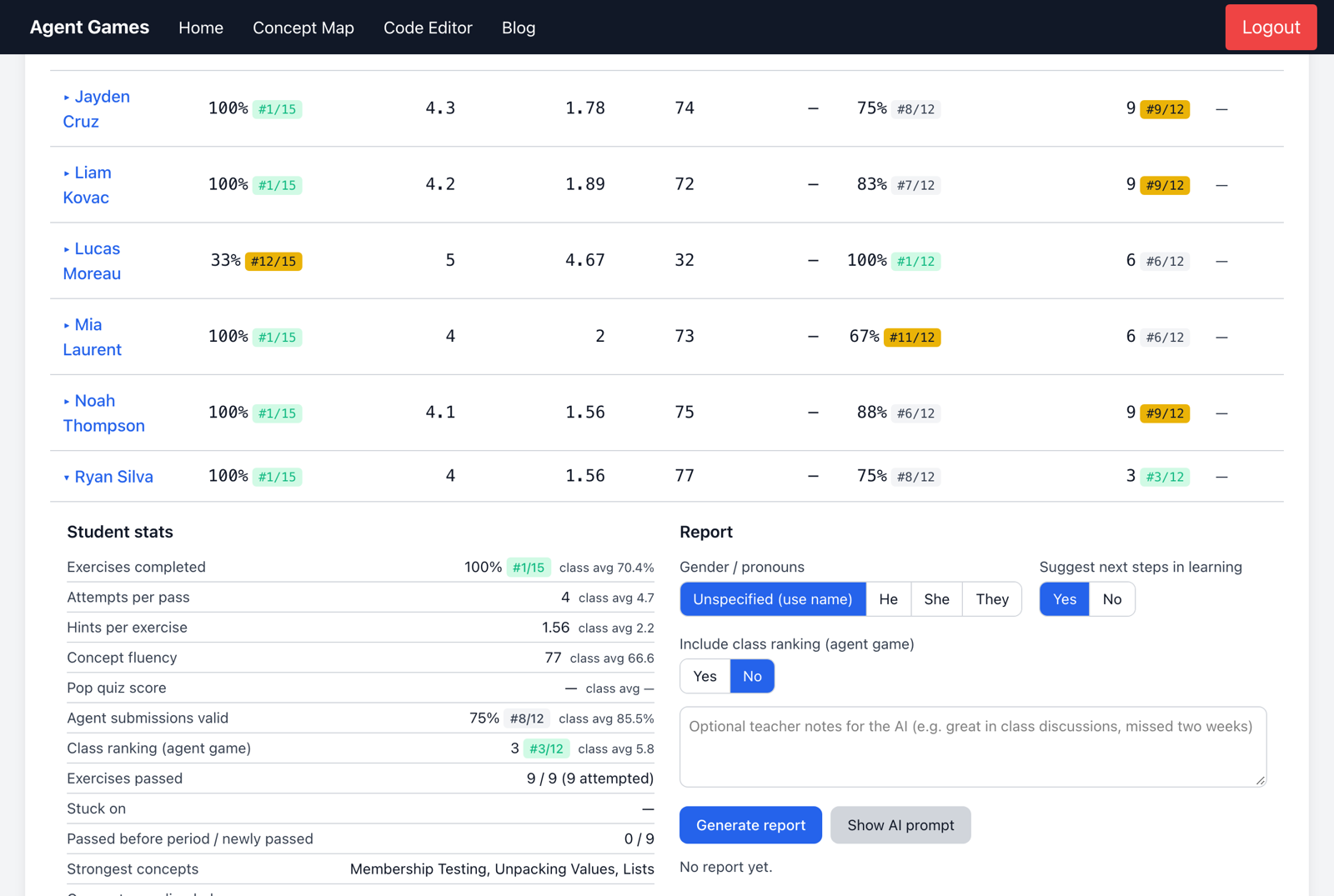
Read and edit every draft before sharing it. Recorded activity is only part of the picture. Generating again replaces the saved draft; Show AI prompt lets you inspect the information used.
Look beyond a score
For a fuller picture, open a student's name in Students and review their course progress, difficult concepts and agent history. Use this alongside quizzes and your classroom observations when assessing understanding.
Pasted code and academic integrity
A red corner dot in Short Course Progress or Submissions means code was pasted or dropped in from outside the editor. Copying within the student's own editor is not flagged. A flag is a reason to ask about the work, not proof of cheating.
Assess plagiarism on a student's page, or AI plagiarism assessment in the agent code viewer, examines submission history for patterns such as sudden changes in complexity. Its conclusions can be wrong. Review the actual attempts and ask the student to explain or adapt their code before making a judgement.
To change the classroom's paste policy, see Settings.