Settings tab
Use Settings to keep a classroom ready for your unit: check when it closes, which courses students can access and what expectations they see.
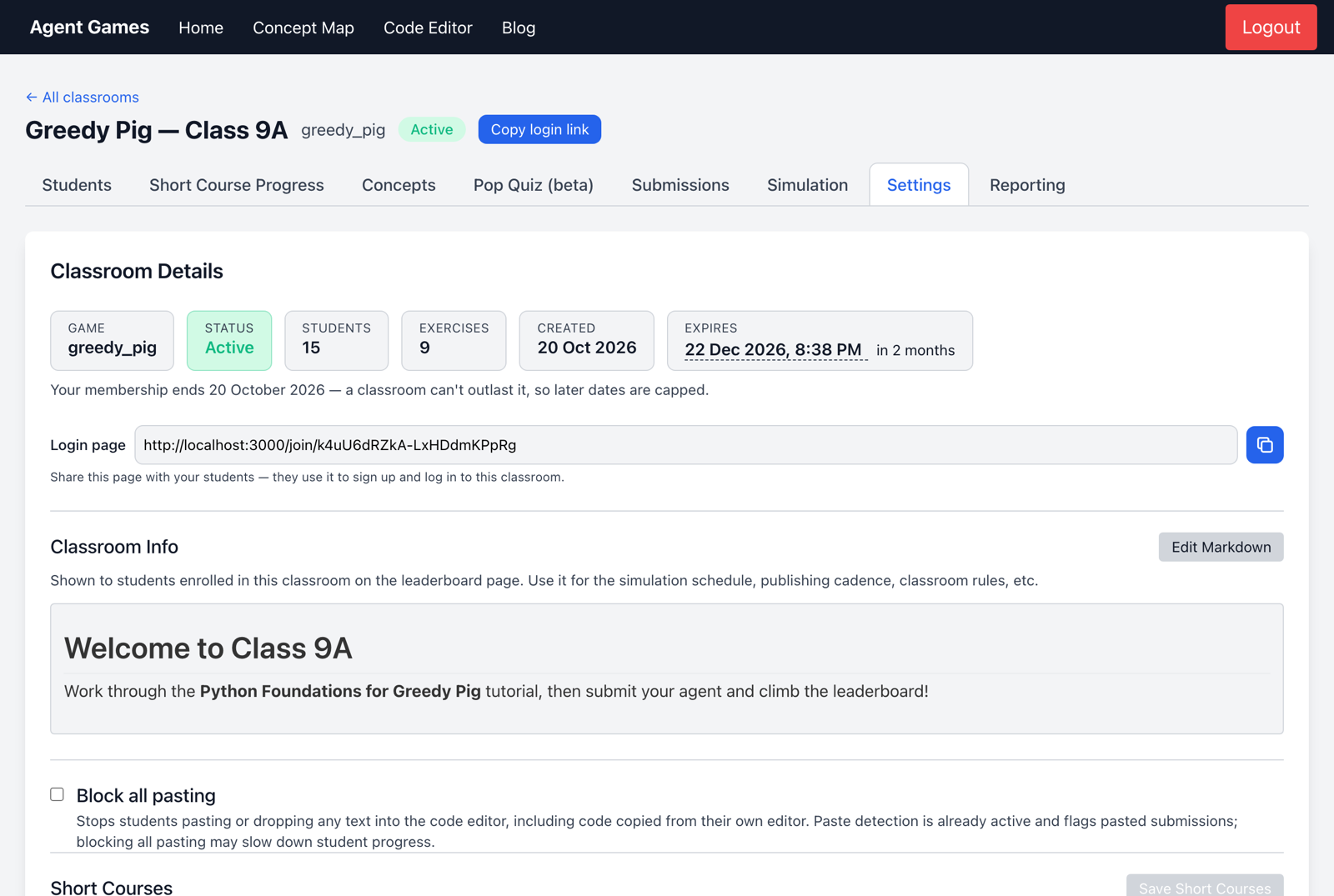
Keep access open for your unit
Set the classroom expiry to cover your teaching dates. A new classroom without an explicit expiry closes after 24 hours, and a classroom cannot outlast your subscription. Expired classrooms can be reopened from the home page to extend their dates.
The classroom login link is for students joining or returning to this class. For an individual access problem, use the Students tab.
Assign courses and communicate expectations
Choose the short courses students should see, then Save Short Courses. The Courses guide helps you choose.
Classroom Info is the message students see on their leaderboard page. Use it for tournament times, rules or the current lesson goal. It supports Markdown if you want headings or links.
Decide how to handle pasted code
External pasting is flagged in course and agent submissions. Block all pasting prevents it instead. Choose this according to your lesson: students may need to paste supplied examples or reuse code during some activities.
Terms and actions to know
School classroom, offered when creating a classroom, is for events where students select a school and receive an automatically generated name. It has no password recovery; ordinary teaching classes usually do not need this option.
Delete Classroom removes the classroom. Students left without one appear under Unassigned students on your home page, where you can assign them to another active class.