Students tab
Use Students at the start of a lesson to see who is active, who needs support and who is ready for a harder challenge. Open it from your classroom.
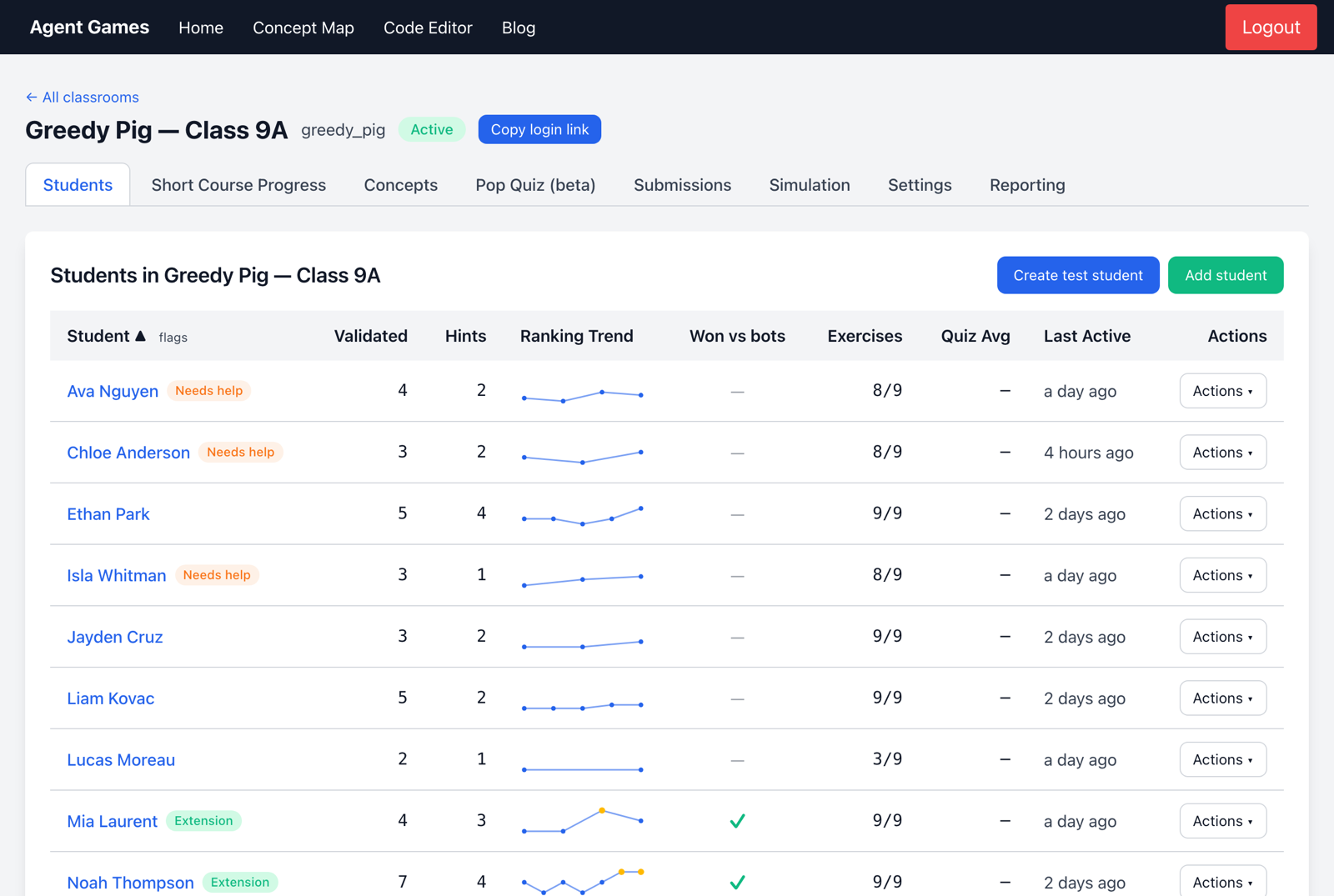
Decide who to visit first
Sort the table by exercises passed, quiz average, agent submissions or last active. These measures give different views of participation and progress; a ranking alone does not tell you what a student understands.
- Needs help points to a student who has worked through a concept's exercises but found them difficult.
- Extension marks students who have passed every exercise and beaten the game bots.
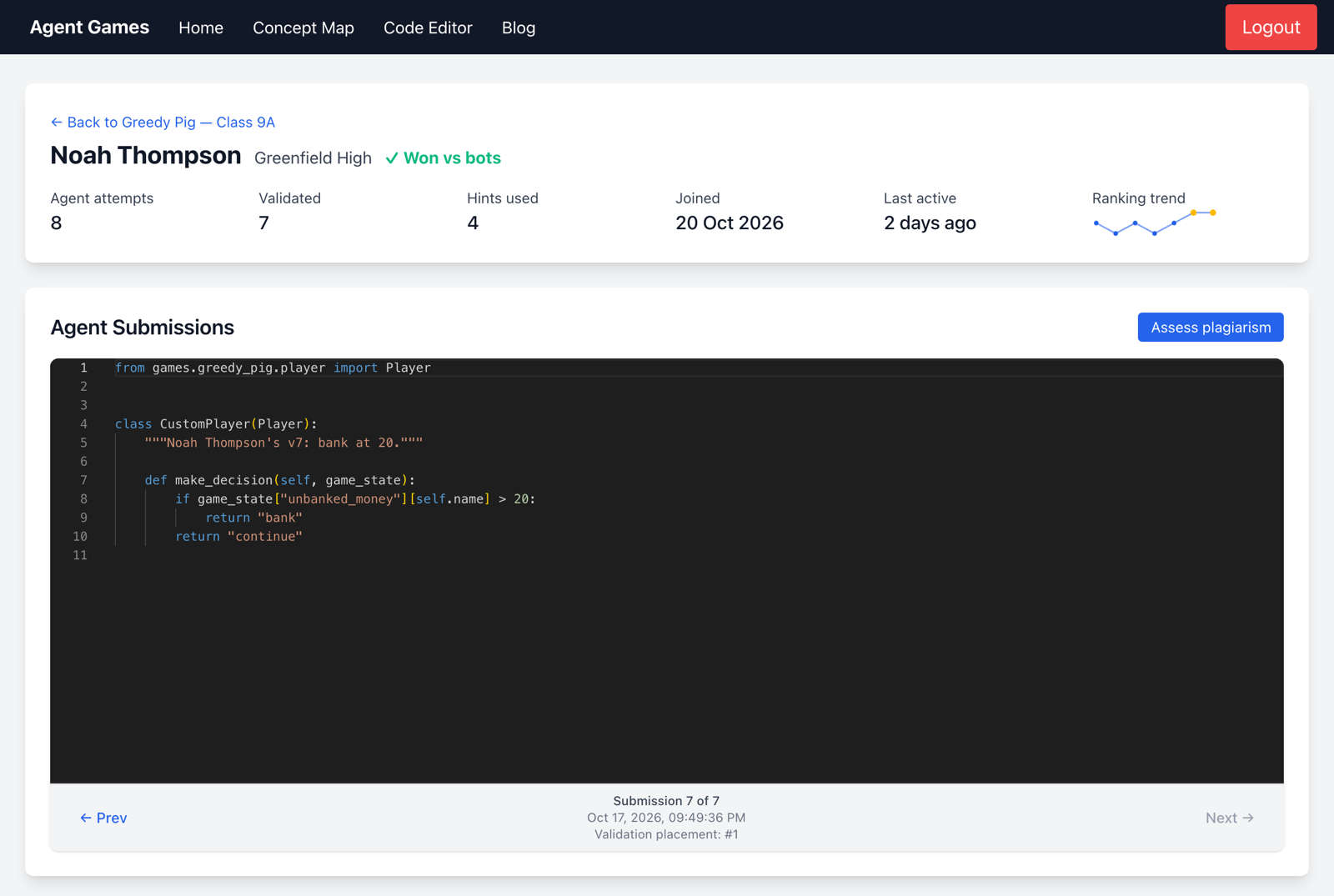
Click a student's name to review their course progress, difficult concepts and agent submission history before deciding on the next task or conversation.
Help students get access
Share the classroom's Student login link with the whole class. For an individual who cannot log in, use Actions → Login link or Reset password.
A personal login link signs directly into one student's account without a password. Share it only with that student. Generating a new link replaces the previous one.
You can also Add student yourself, move a student to another active classroom, or delete a student through Actions. Deleting a student removes their submissions too.
Create test student gives you a practice account. Open its login link in a private window to experience the lesson as a student.